
Education How to use the PC
Basic procedure
1. Setting the BYOD switch button
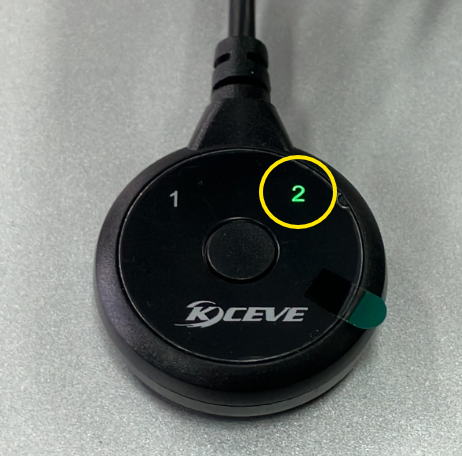
Press the BYOD switch button under the monitor so that 2 lights up.
2. Starting the terminal
Press the power button, which is at the top right on horizontally mounted PCs and at the top left on vertically mounted PCs.
3. Logging in
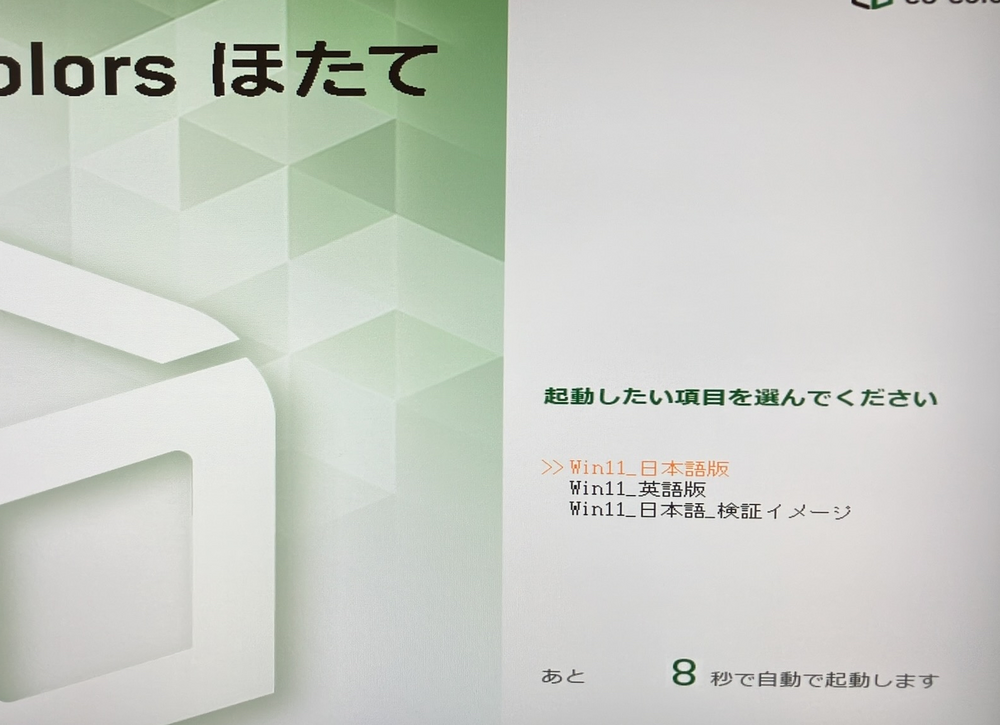
Switch the terminal on. Select the item you want to start. If you do not select anything, Win11_Japanese starts after a few seconds.
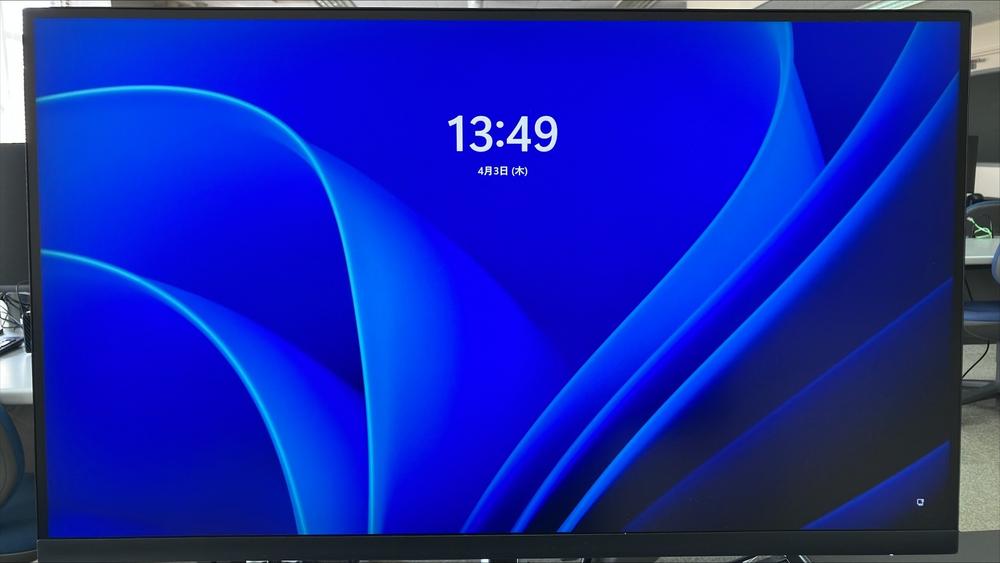
Press the Enter key at the Windows screen.
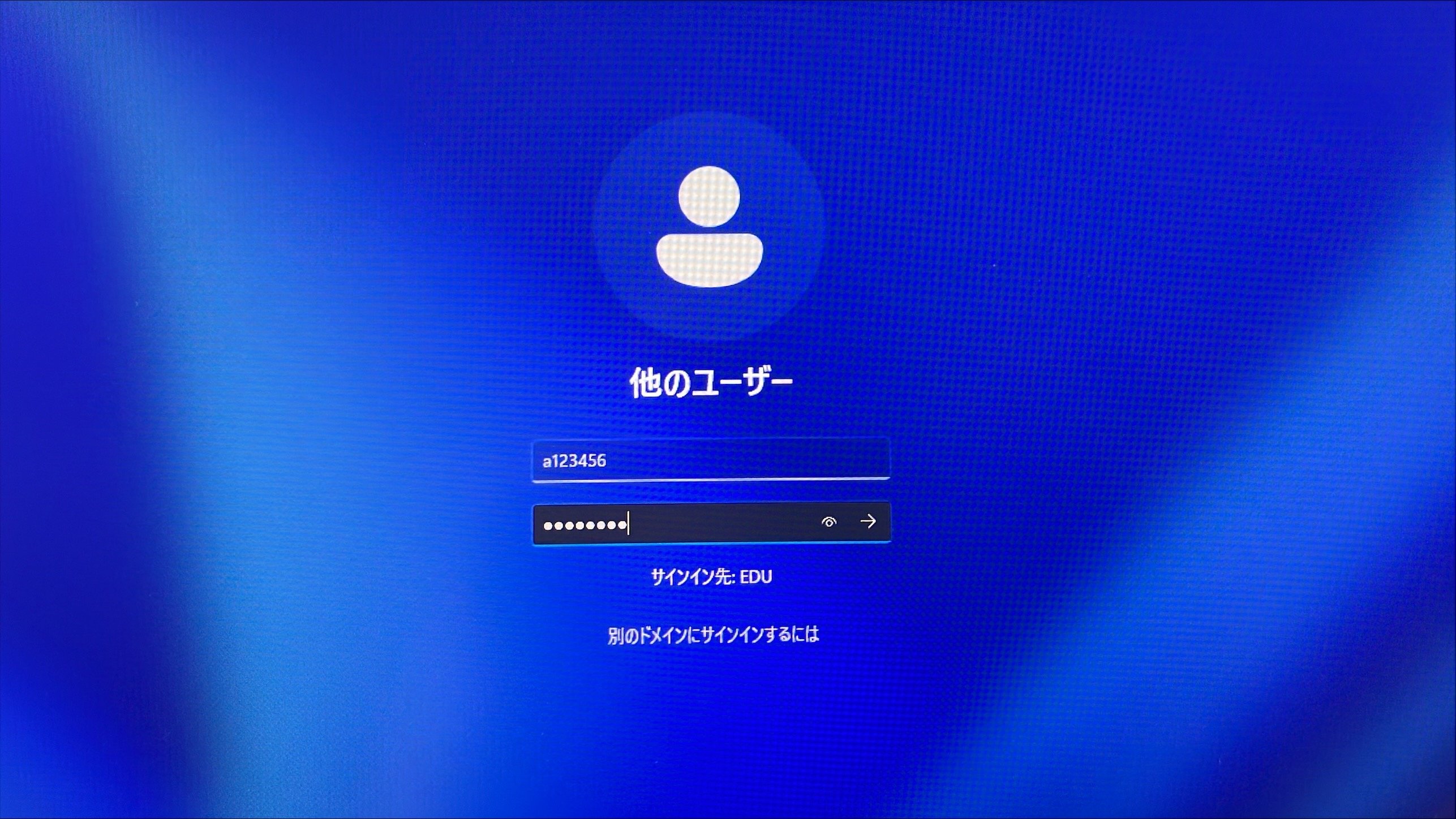
Enter your account name and password.
4. Saving files
Save your files in your own home directory (drive Z).
[Note] Files saved anywhere other than drive Z, such as on the desktop,are deleted when the terminal is shut down
Files saved in your home directory are retained after you log out of the terminal, and you can edit them again when you log in later. The contents of this area are stored on a file server rather than on the terminal, so you can access the same content from any terminal.
5. Leaving your seat temporarily
Pressing the Windows key + L locks the screen. While locked, the terminal accepts almost no operations, and the password of the logged-in user is required to unlock it. Always lock the screen when you interrupt your work or leave your seat. If you leave without locking, someone else can carry out all kinds of operations in the meantime: your data could be deleted, or email you never wrote could be sent from your account. Always lock the screen when you leave your seat in order to avoid this. In companies that use Windows, terminals are placed where any number of people can reach them, so it is a good habit to get into. If you are not leaving temporarily but have finished using the terminal, shut it down as described next.
6. Shutting down the terminal
Open the Start menu (the Windows icon) at the bottom left of the screen and choose “Shut down”. If you do not follow this procedure and instead press the power button or unplug the power cable while the computer is running, you may lose the data you are working on or damage the computer. Always follow the procedure above.
Using the Linux environment
At the Information and Media Center you can use a Linux environment by logging in to a Linux server from a Windows terminal.
In the Linux environment, drive Z of the Windows terminal is used as your home directory. This makes it easy to edit a file created on Windows from Linux, and vice versa. You can use the Windows IME (Input Method Editor) for text input as it is, and copy and paste between the Windows and Linux environments works seamlessly.
1. Getting started
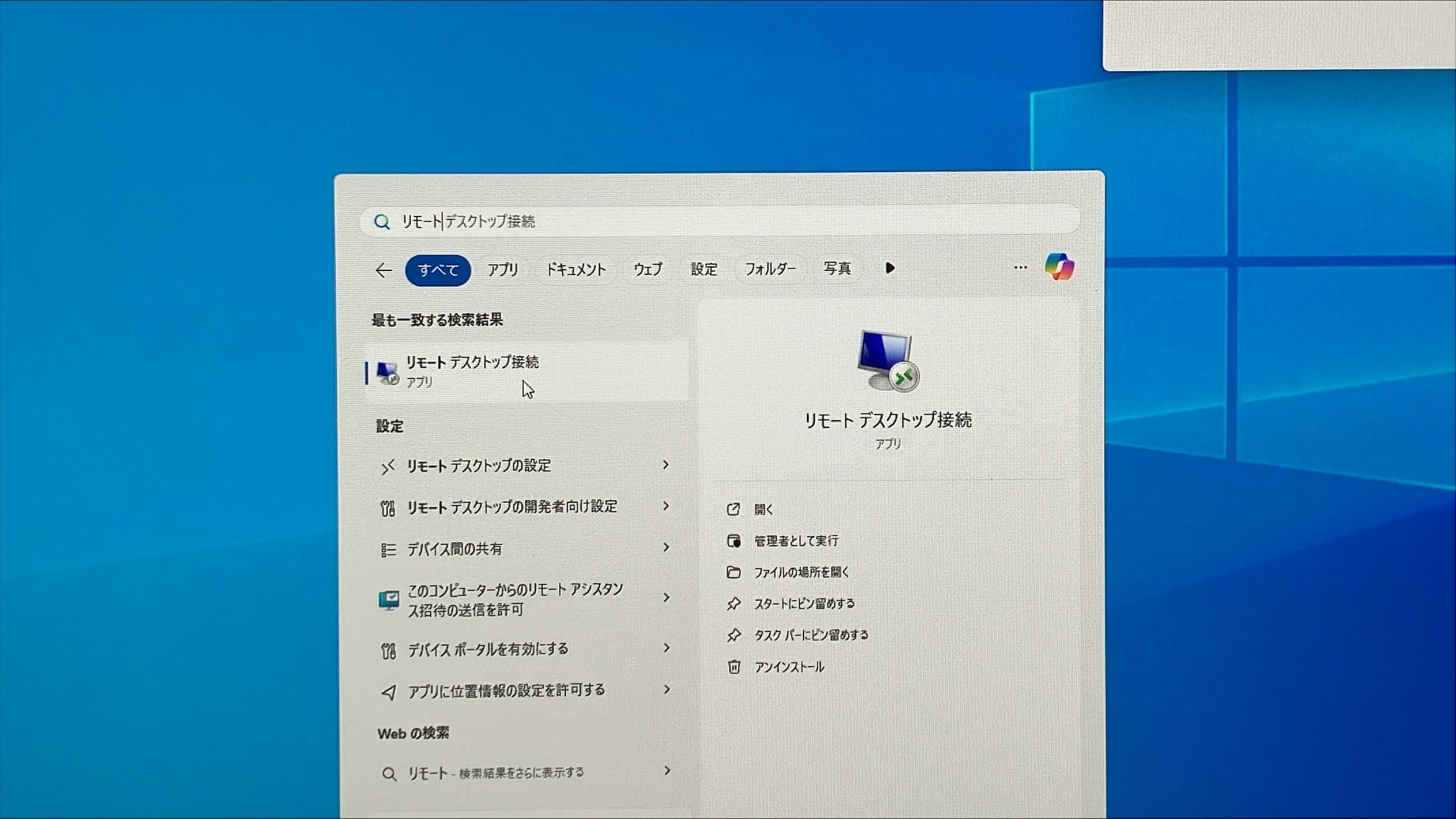
1. From the Start menu, type “remote” and start “Remote Desktop Connection”.
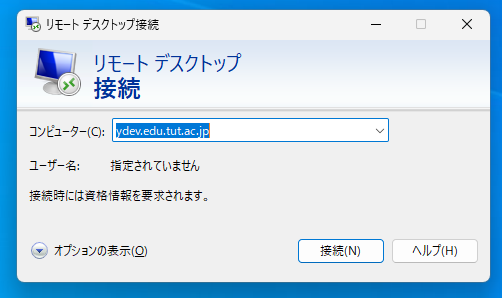
2. Enter “ydev.edu.tut.ac.jp” as the computer to connect to and click “Connect”.
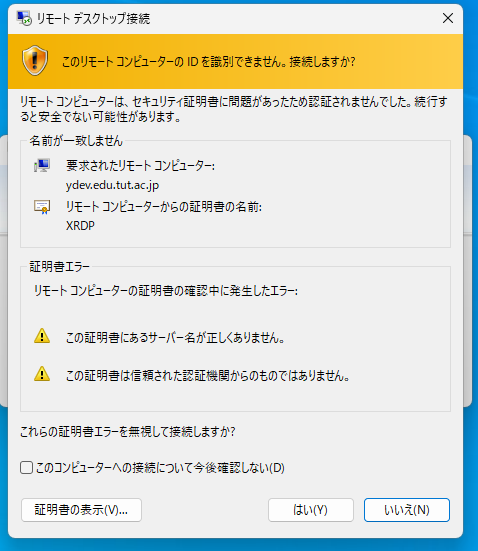
3. A warning dialog appears saying that the remote computer cannot be identified. Click “Yes” to ignore it and connect.
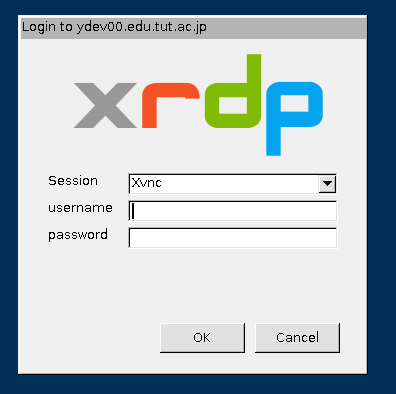
4. After a short wait, a dialog asking for your user name and password appears. Enter each correctly and click “OK”.
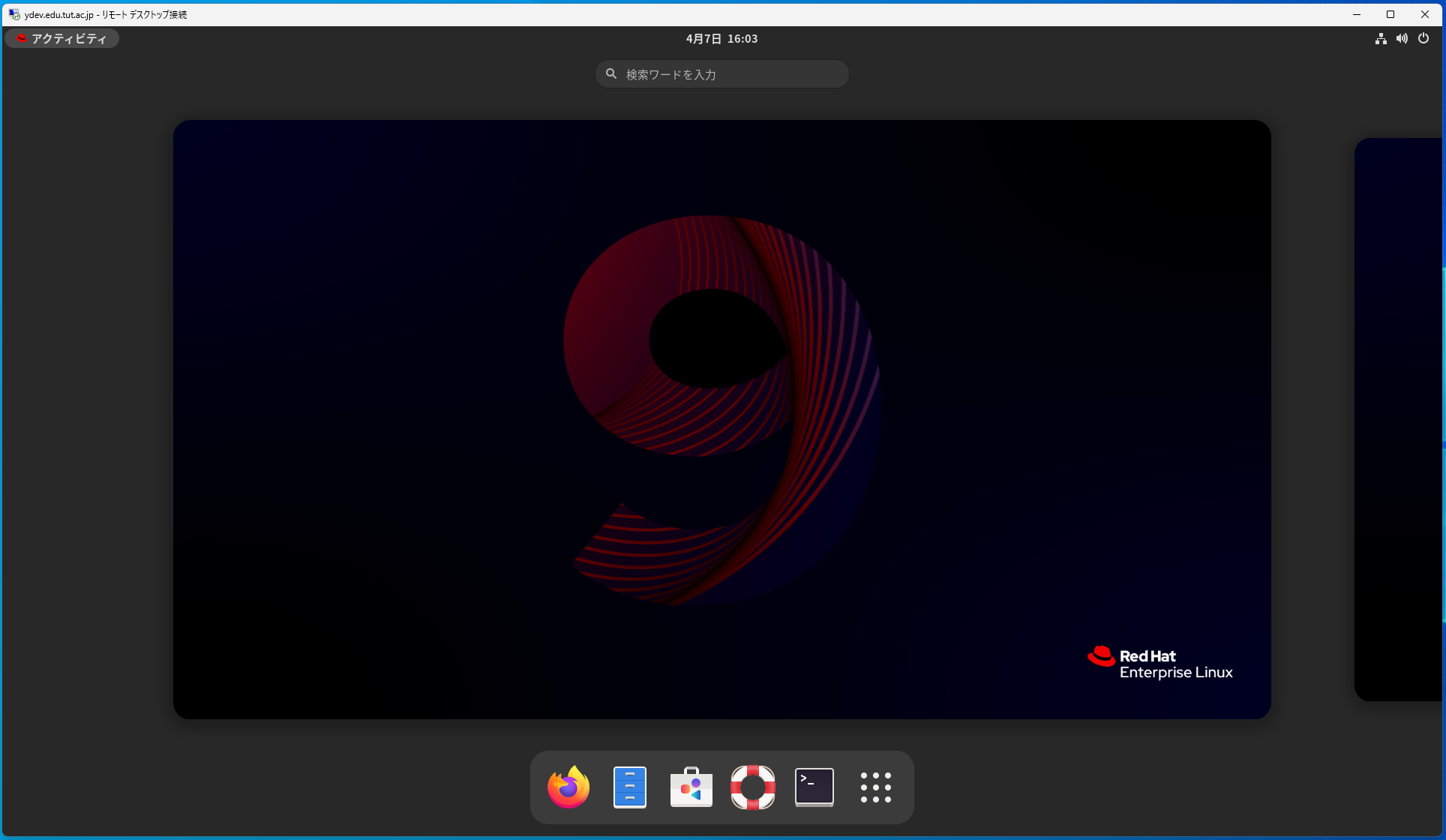
5. Once authentication is complete, the Linux desktop appears. From here you can use it just like any other Linux system.
5.2. Using the command line
1. Starting it
Starting it
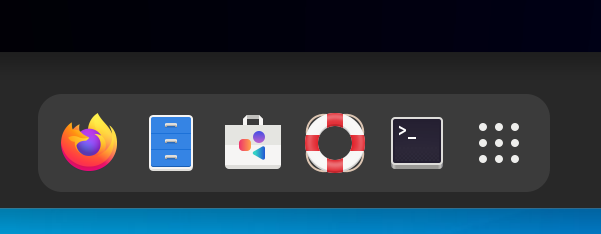
Select “Terminal” from the icons below
2. Ending the session
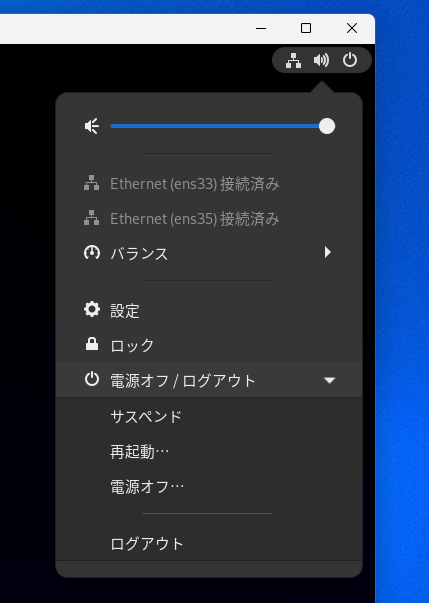
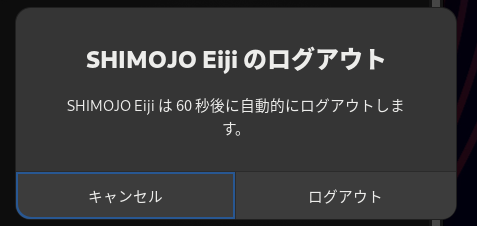
From the power icon at the top right, choose “Power off / Log out” → “Log out” → “Log out”.
Even if “Power off” is shown, do not select it.
3. UNIX commands
In UNIX you carry out a task by combining several commands. A single command can also be used in many ways by changing its options. As an example, type man man at the terminal.
Example of running the man command
% man man
man(1) man(1)
NAME
  man - display reference pages.
SYNOPSIS
  man [-] [-M | -P pathname] [-t] [ section[suffix] ] title ...
  man [-] [-M | -P pathname] [-t] [ section[suffix] title ...]...
  ... (abridged)
Press Space to read on, and q to quit. This displays the manual (the online manual) for the command man. In UNIX you can read manuals for UNIX commands and for functions used in C on screen. To display the online manual for another command, type the following.
% man commandname
Get into the habit of reading the manual whenever something is unclear.
3. Basic commands
The following sections explain the basic commands for working with files and directories.
| pwd | Shows the directory you are currently in. |
| ls | Lists the files and directories in a directory. |
| cd | Changes directory. |
| mv | Moves a file. Can also be used to rename a file. |
| cp | Copies a file. |
| rm | Deletes a file. |
| mkdir | Creates a new directory. |
|
rmdir |
Deletes a directory. |
| cat | Displays the contents of a file on screen. |
| less | Displays the contents of a file on screen. Unlike cat, it lets you scroll through the content interactively. |
| ps | Lists the processes currently running. |
| kill | Terminates a running process. |
Many sites explain how to use UNIX commands. Please see these sites for details.
-
Linux Command Encyclopedia http://www.21linux.com
-
How to Use Linux http://merry.whitesnow.jp/SEMICMD/cmdtop.html
-
Linux Standard Textbook http://www.lpi.or.jp/linuxtext/text.shtml
4. The UNIX file system
In UNIX, everything from text files and directories to hardware such as hard disks and mice is represented as a file. These files form a tree structure with the directory called “/” (root) at the top.
UNIX has the following special directories, which are written with dedicated symbols.
| Current directory | . | The directory you are currently in. |
| Parent directory | .. | The directory one level above the one you are in. |
| Home directory | ~ | The directory where your own files are kept. You start in this directory when you log in. |
| Root directory | / | The top of the directory tree. All files are placed below it. |
In UNIX there are two ways to specify a file: a relative path and an absolute path. A relative path locates the file starting from the current directory (.), and an absolute path starting from the root directory (/).
Suppose, for example, that the directory structure is as follows and the current directory is /ant.
/
|-- ant
|   |-- a
|   `-- dog
|       `-- b
|-- bear
|   `-- c
`-- d
The files are then written as follows in relative and absolute form.
| Relative path | Absolute path | |
| a | a | /ant/a |
| b | dog/b | /ant/dog/b |
| c |
../bear/c |
/bear/c |
| d | ../d | /d |
What you must bear in mind is that a relative path changes meaning depending on where the current directory is. If you run into a problem such as “the program worked in one place but stopped working when I moved it”, it is worth checking whether the file paths are correct.
5. File permissions
In UNIX every file has permissions. These control who can read the file, who can write to it, who can execute it, and so on.
You can check what permissions are set on a file by adding the “-l” option to the ls command.
% ls -l
total 12
drwxrwxr-x  3 taro student 4096  Apr  6 17:31 ./
drwxr-xr-x 25 taro student 4096  Apr  6 17:30 ../
-rw-rw-r--  1 taro student    0  Apr  6 17:31 bar
drwxrwxr-x  2 taro student 4096  Apr  6 17:31 foo/
The permissions are the “drwxrwxr-x” part at the start of each line. Each character means the following.
| d | rwx | rwx | r-x |
| The file type. d denotes a directory. | The owner's permissions | The permissions of users in the same group | The permissions of all other users |
Within each user's permissions, the characters mean the following. Where a permission is not granted, “-” is shown.
| r | Read permission (Readable) |
| w | Write permission (Writable) |
| x | Execute permission (eXecutable) |
Set appropriate permissions on the files and directories you own. Use the chmod command to change a file's permissions.
For example, if you do not want anyone but yourself to see the contents of a file called bar, do the following.
% chmod go-rwx bar
% ls -l bar
-rw-------  1 taro student    0  Apr  6 17:31 bar
Compare the permissions on bar with the previous example. All permissions for users other than yourself have been removed.
Conversely, to let all users read and write it, do the following.
% chmod ugo+rw bar
% ls -l bar
-rw-rw-rw-  1 taro student    0  Apr  6 17:31 bar
As the examples show, with the chmod command you
- first specify whose permissions to set (owner: u, same group: g, others: o),
- then specify whether to grant (+) or remove (-) permission,
- and finally give the permissions concerned (read: r, write: w, execute: x)
. There is also another way of specifying permissions, using numbers such as 755 or 644. Look this up with the man command.
6. Managing your password
Managing your password is extremely important. How to change your password 2019.pdf
The password you set must meet the following conditions.
- Length: at least 12 and at most 127 characters
- Does not contain your account name, surname or given name
- Is not the same as your previous password
-
- Uppercase letters (A-Z)
- Lowercase letters (a-z)
- Digits (0-9)
- Symbols ($, #, % etc.) Use characters from at least three of the following four categories
To change your password, go toPersonal Settings.
Note
- The same password is used for email, wireless LAN, VPN, the library system and so on.
- If you have forgotten your password, you can reset itusing this procedure.
You need to choose a password that is easy for you to remember but hard for others to guess. The following points may help.
● Points to note when setting a password
・Avoid easy passwords. Words, place names, personal names, these spelled backwards, or such words with digits added before or after them are all easy passwords.
・Use plenty of characters: at least 12.
・Use a variety of character types: not only lowercase letters but also uppercase letters, digits and special characters.
・Change your password regularly.
Examples of good passwords (easy for you to remember, hard for others to work out)
・Join two words together and put digits or other characters between them.
Example: combining a location, an extension number and an abbreviation → tempaku66<!>39imc
・Think of a phrase you like, take the initial letters of its words and put digits between them.
(If the phrase is in Japanese, transliterate it into the alphabet.)
Example: “computer center” → kei3ki1000ta
: “the only flower in the world” → sekaI2hIto2dakeno87
* The important thing is to adapt it in your own way.
Examples of bad passwords
・Your login name itself. Capitalizing it or repeating it is no better.
・The name of yourself, your spouse, your children, your parents, your pet, or a close friend or colleague.
・The name of a favourite character or of your supervisor. A common personal name.
・The name of the operating system you use, or your computer's host name.
・Your date of birth, telephone number, driving licence number, health insurance number or part of it, or any information about you that is easy to obtain.
・Words found in an English dictionary or in a dictionary of another language.
・Place names or proper nouns.
・All the same character, or a run of keys as they appear on the keyboard (qwerty, qawsedrf and so on)
Source: “Dictionary of Information Security”, supervised by Norihisa Tsuchiya, Kyoritsu Shuppan