
Education Touble shooting
I have completely forgotten my password
Bring your student ID card and apply at the counter for a reissue of your account information notice (your password will be reset).
Alternatively, you can reset your password yourself.
For details, seehere(A matrix code and a recovery email address must be registered.)
I cannot save files / How to delete files I no longer need
- The disk quota for a practical-work account is 20 GB. Once you exceed it you can no longer log in or save files.
-
personal settings page to check your quota and how much of it you are using.
- Back up your files to a USB stick or similar from time to time (save your files).
- Delete files you no longer need. On Linux, moving a file to the Trash deletes it. On Windows, move it to the Recycle Bin and then choose “Empty Recycle Bin”. Also clear your browsing history in Firefox, Internet Explorer and so on.
- On Linux, the commands for deleting files are as follows.
List files
% ls
% ls -la   (adding a shows dot files, i.e. hidden files)
Note: Because of a bug in Linux, a file called .xsession-errors.old of about 5 GB is sometimes created.
To check % ls -la .xsession-errors.old
To delete % rm .xsession-errors.old
Check file sizes
% du -k *    (sizes of all files)
% du -ks .    (total size of the whole folder)
   (shown in kilobytes. Keep it within 20000000)
       (to show it in megabytes, use du -ms . )
   (example: % du -ks  ~/.filename filename etc.)
Delete unwanted files
% rm -i filename
Delete without confirmation
% rm filename
Delete a whole directory without confirmation
% rm -r directoryname
Windows environment
I get a blue screen after logging in
1. After logging in to Windows, a blue screen containing the following message appears.
PAGE_FAULT_IN_NONPAGED_AREA.
Technical information
0X00000...(0X.......,0X00.......,0X8058C568,0X00......)
(.... is a number)
2. Hold down the power button to switch off, then restart.
After logging in, “Loading personal settings” takes a very long time
- If you keep a large number of files on the desktop, it takes a long time after login before you can start working. Please keep your files in your home directory, drive Z:.
- Delete files you no longer need.
(Note) Do not save files on the desktop. Save files in your home directory (Z:) and back them up to a USB memory stick or similar as appropriate.
After logging in I cannot see drive Z: or my files
- This can happen when the network connection is not established at the right moment. Please restart.
When I log in I get the message “cannot load your profile” and cannot log in
- This can happen when many people log in at the same time, for example during a class. Hold down the power button to switch off, then restart.
I cannot connect to the Internet
- If you alone cannot connect using Internet Explorer, use the Firefox web browser. If that still fails, check the proxy server settings.
Tools --> Options --> Advanced --> Network --> Connection Settings --> tick “Auto-detect proxy settings for this network” and click OK
- If you need to use Internet Explorer, check the proxy server settings
Tools --> Internet Options --> Connections (tab), under Local Area Network (LAN) settings click the LAN settings button, clear the “Use a proxy server” checkbox and click OK
- If it will not connect because an Internet Explorer add-on is missing, do not open it from the desktop or Start shortcut. Instead,
- open Start → All Programs → Internet Explorer, and then check the proxy server settings above
-
If other people also cannot connect, the network in the room may be down --> go to the office on the 1st floor
Linux environment
Thunderbird will not open
1. If Thunderbird will not open because it says it is “already running”, a lock file may have been created.
2. Start Linux, open a terminal window, and use the following command to save the file xxxxx.default under a different name (the xxx part differs from user to user, so check it with the ls command).
% cd ~/.thunderbird
% ls
% mv ○○○○○.default  ○○○○○.DEFAULT
3. Restart Thunderbird.
Firefox will not open
1. FireFoxIf it will not open, open a terminal window and use the following command to rename or delete the file xxxxx.default (the xxx part differs from user to user, so check it with the ls command). Note that your bookmarks will be lost.
% cd ~/.mozilla/firefox
% ls
% mv xxxxx.default  xxxxx.DEFAULT
or delete it
% rm -r xxxxx.default
2. Restart the terminal.
If that still does not solve it, delete everything under ~/.mozilla/firefox .
% cd ~/.mozilla/firefox
% pwd     (check that you are in the firefox folder)
% rm -r *  (delete all files)
I cannot type Japanese
When you connect to the educational Linux server using Remote Desktop Connection, an error message like the following may appear and you may be unable to type Japanese.
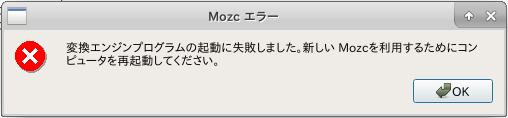
In that case, do the following.
1. Run the following command to delete the unneeded file.
% rm -f ~/.mozc/.server.lock
% rm -f ~/.mozc/.session.ipc
2. Log out once, then log in again.
Note that to switch Japanese input on and off you can try Control+Space as well as the Hankaku/Zenkaku key.